
Payments.
Stores, Stripe, PayPal and manual top-up.
Viewers buy coin packs and VIP passes through the App Store, Google Play, Stripe or PayPal on the web, or a manual top-up you approve. Every payment switch ships off, and coins are added only after the provider confirms the payment to the server.
011. Create your products
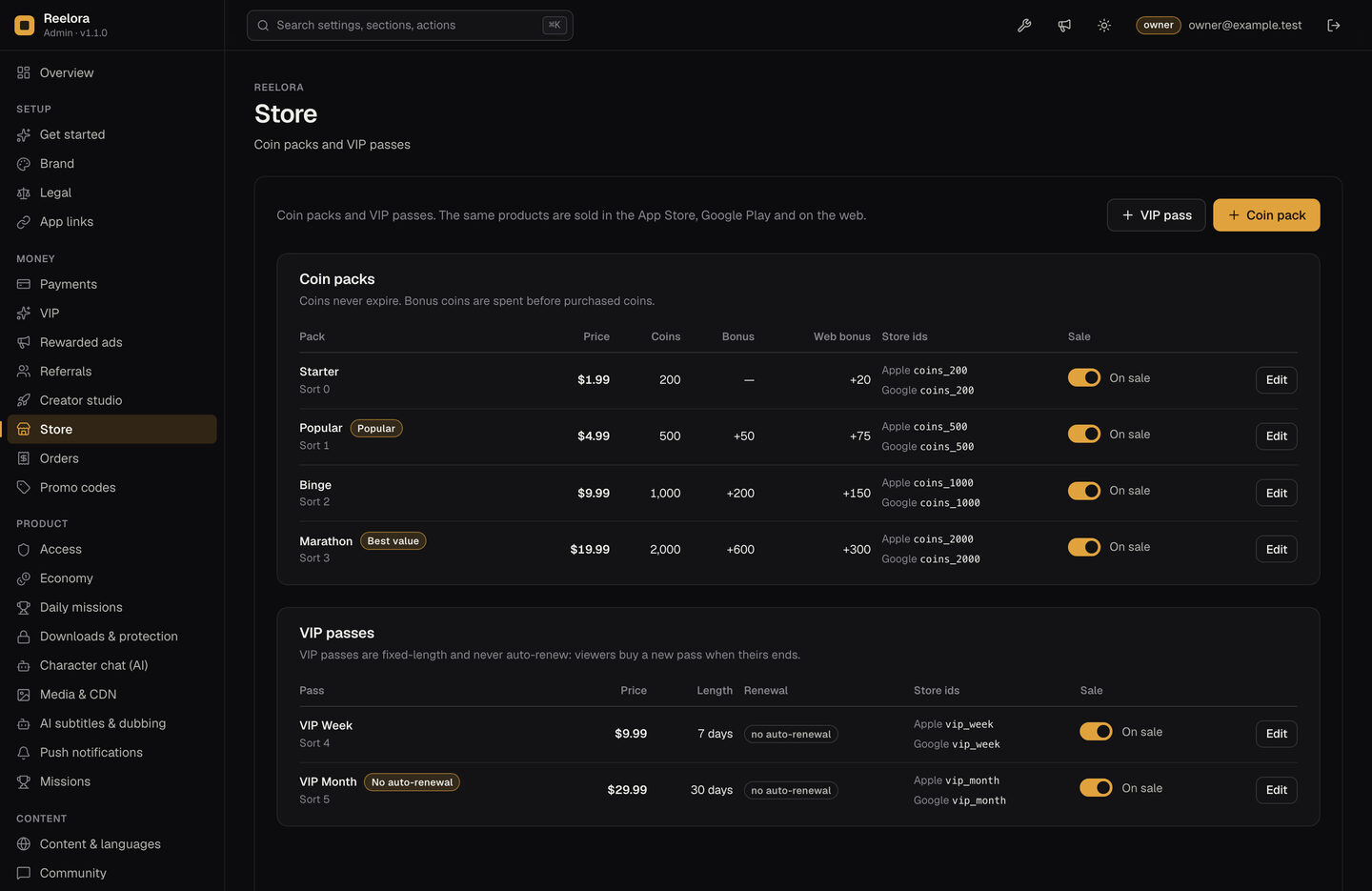
Console → Store: add coin packs (price, coins, bonus coins, extra bonus on the web, an optional badge) and VIP passes (number of days). The same products are sold in the App Store, Google Play and on the web. Bonus coins are spent before purchased coins; coins never expire.
022. Turn on payments
Console → Payments → Sell coin packs and VIP passes, and Console → VIP → VIP passes if you sell passes. Then choose per platform what the app may do:
| Mode | In the app |
|---|---|
| Store purchases only (default) | App Store / Google Play in-app purchase |
| Store purchases + link to web checkout | In-app purchase plus a "Buy on the web" link to Web store address |
| Web checkout only | Only the web link, no in-app purchase |
| No purchases on this platform | Nothing for sale |
03Store rules on linking to a web checkout
The payment mode is an operator switch. Which mode you may use is decided by Apple's App Store Review Guidelines and Google Play's payments policy for every country you serve, and those rules change by country and over time. As noted in docs/CONFIGURATION.md (November 2026): apps in the United States may link to a web checkout; in the EU Apple and Google charge reduced commissions on linked purchases under their own programmes; elsewhere the default is in-app purchase only.
Keep "Store purchases + link to web checkout" off unless you have checked the current rules for every country you serve, and submit your app for review with the mode you actually use. Close the service in countries you do not serve with Access → Blocked countries (needs COUNTRY_HEADER).
04App Store and Google Play
Create the products in App Store Connect and Play Console, enter their ids in Console → Store, and set up server verification (iOS bundle id, App Store environment, Android package name, Google Play service account). Step by step on App setup → In-app purchases.
05Stripe (web player)
- Stripe Dashboard → Developers → API keys: copy the secret key into Console → Integrations → Stripe secret key (use Test).
- Developers → Webhooks → Add endpoint
https://<your domain>/api/webhooks/stripewith the eventscheckout.session.completed,checkout.session.async_payment_succeededandcharge.refunded. Copy the signing secret (whsec_…) into Console → Integrations. - Console → Payments → Stripe checkout on the web: on.
Coins are added only when Stripe's signed webhook confirms the payment. A refund you make in Stripe reaches the server through the charge.refunded event: the order is marked refunded and the coins still in the viewer's wallet (and any VIP days) are taken back automatically.
06PayPal (web player)
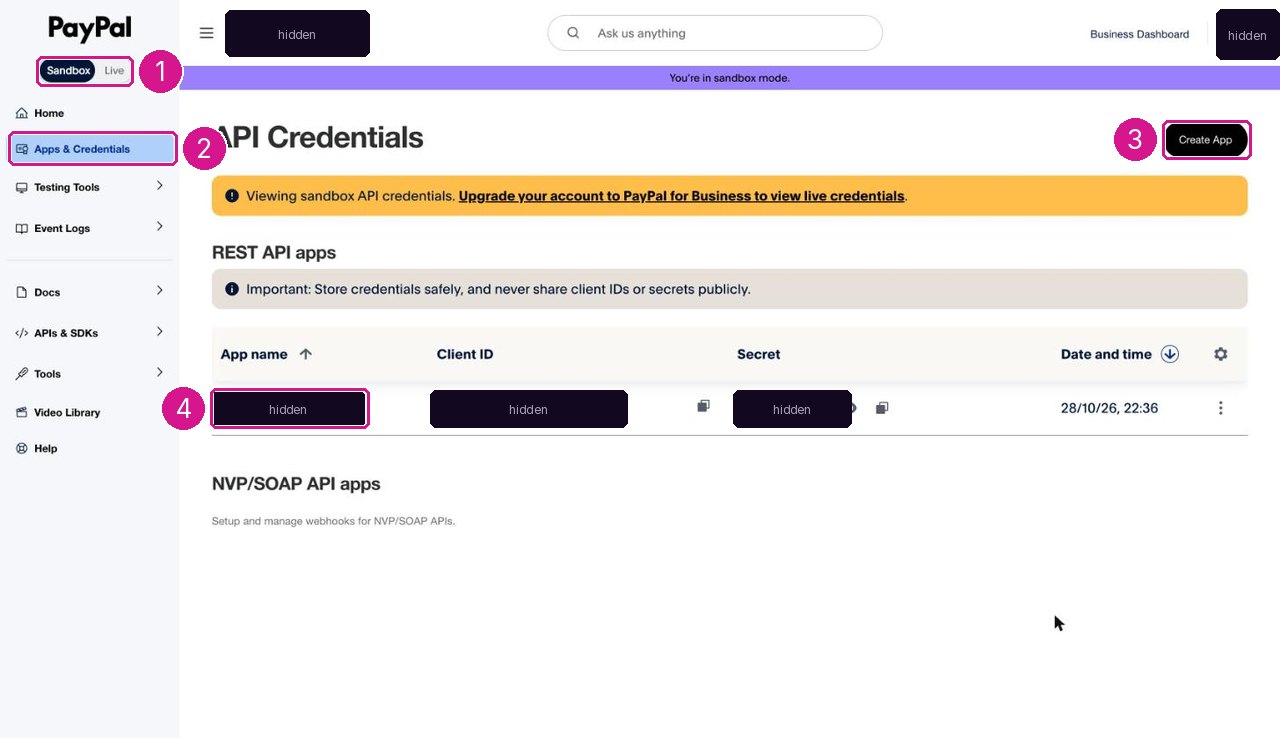
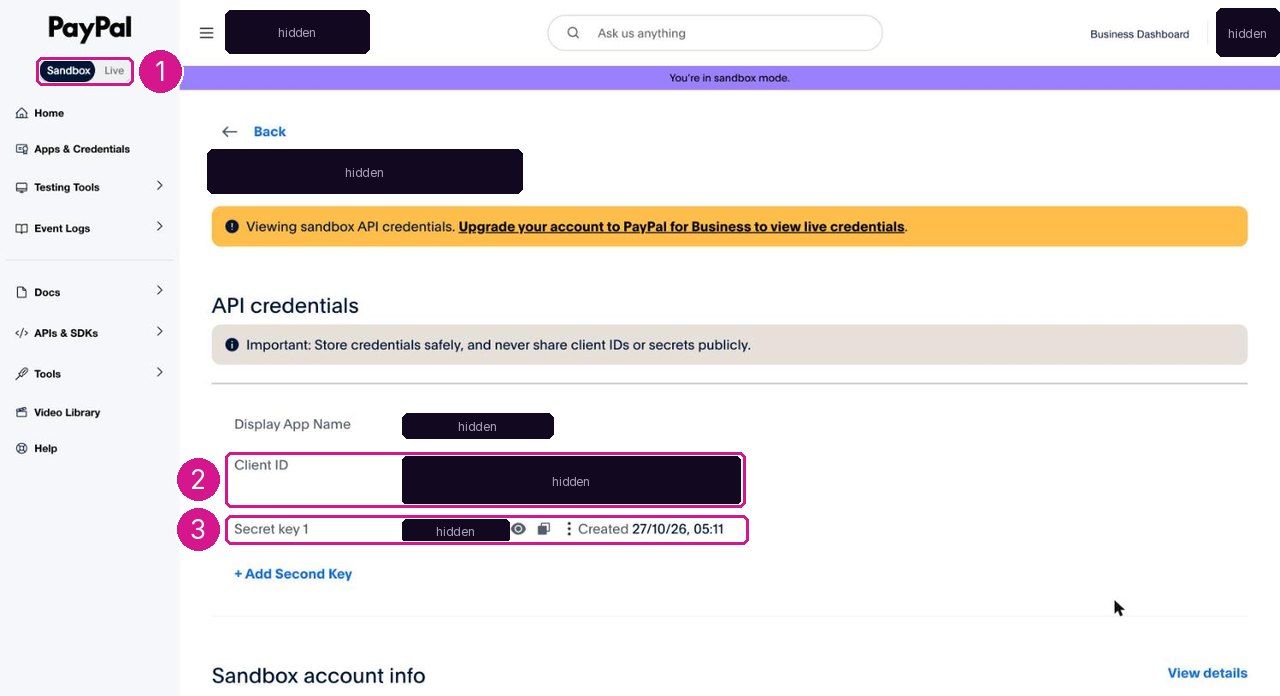
- developer.paypal.com → Apps & Credentials → create an app (Sandbox first). Copy the client id into Console → Payments → PayPal client id and the secret into Console → Integrations → PayPal secret.
- Console → Payments → PayPal checkout on the web: on. Leave PayPal live mode off while you test with sandbox accounts, then switch it on with your live app's credentials.
The viewer approves the payment on PayPal and returns to /api/checkout/paypal/return. The server captures the order and delivers coins only when PayPal reports the exact amount and currency as completed.
07Manual top-up
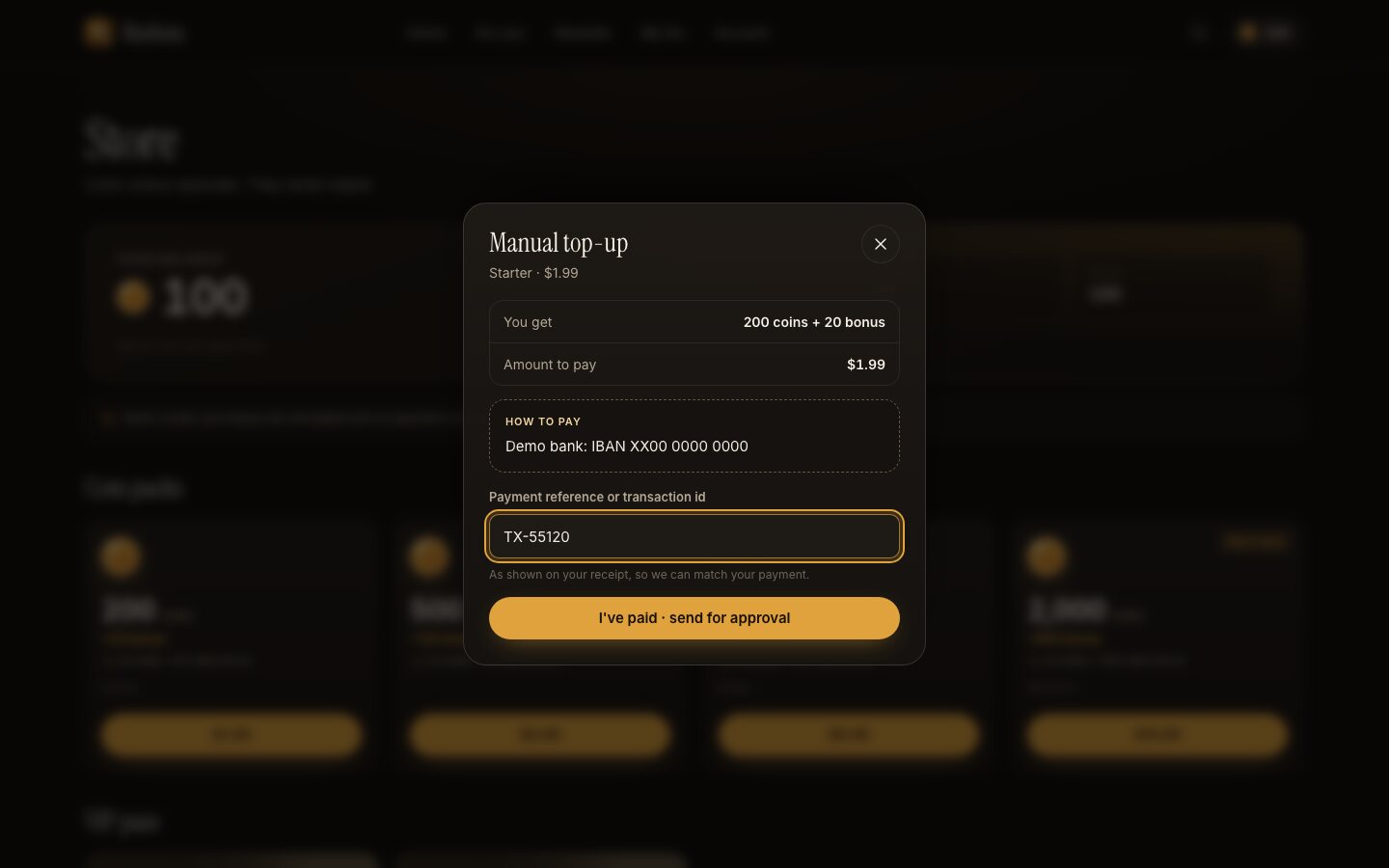
For bank transfer, mobile money or cash. Console → Payments → Manual top-up and Payment instructions (your account details and what to write as the reference).
- The viewer picks a pack, pays outside the app and enters the payment reference.
- The order waits on Console → Orders.
- You check that the money arrived with that reference, then approve (coins are delivered once) or reject with a reason.
08Refunds and revenue
| Provider | What happens when you refund |
|---|---|
| Stripe | Automatic. The charge.refunded webhook marks the order refunded and takes the coins back. |
| App Store, Google Play | Not automatic. The server does not receive store refund or revocation notices. When Apple or Google refunds a viewer, mark the order refunded on Console → Orders yourself (store refund reports are in App Store Connect and Play Console). |
| PayPal, manual top-up | Not automatic. Refund in PayPal or your bank, then mark the order refunded on Console → Orders. |
Marking an order refunded (with a reason, written to the audit log) takes back the coins from that order that are still in the viewer's wallet and removes its VIP days. Coins the viewer has already spent are not taken back. The Revenue page counts only paid orders with a provider reference and manual top-ups you approved; refunded orders are listed under Refunded on Console → Orders.
09What this costs you
Each payment provider bills you directly: the App Store and Google Play keep a commission on every in-app sale, Stripe and PayPal charge a processing fee per web sale, and publishing needs an Apple Developer Program membership (yearly) and a Google Play developer account (one-time fee). Rates depend on your country and programme: check Apple's, Google's, Stripe's and PayPal's pricing pages. See Costs not included.
10Before you take real money
DEMO_MODEisfalse(demo mode simulates purchases).- Console → Status shows no failing payment checks.
- App Store environment is "Production only" for the live app.
- PayPal live mode is on with live credentials, or PayPal is off.
- Your terms and privacy policy are linked in Console → Legal.